






Playing fields
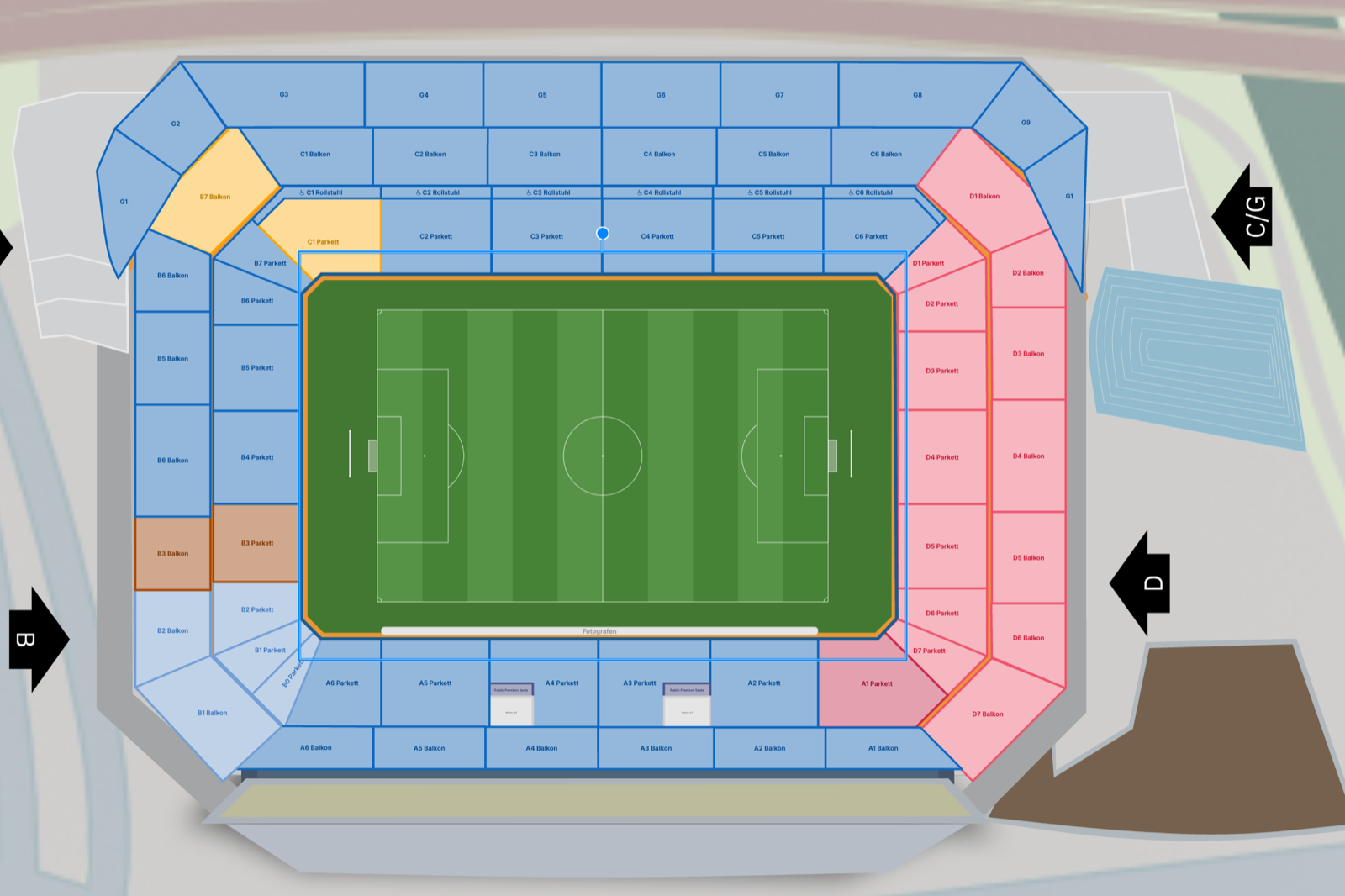
Stadium and arena charts can now have a real playing field at their centre. Pick a sport, place it on your floor plan, and the designer draws the pitch, court or rink at its true size, so it lines up with your stands. Ticket buyers see it on the chart and in the 3D view.
Getting started
Select the new Playing field tool in the designer's toolbar and pick a sport. Then click your floor plan to place the field. You can move and rotate it like any other object, and change its scale if your floor plan isn't drawn to scale.
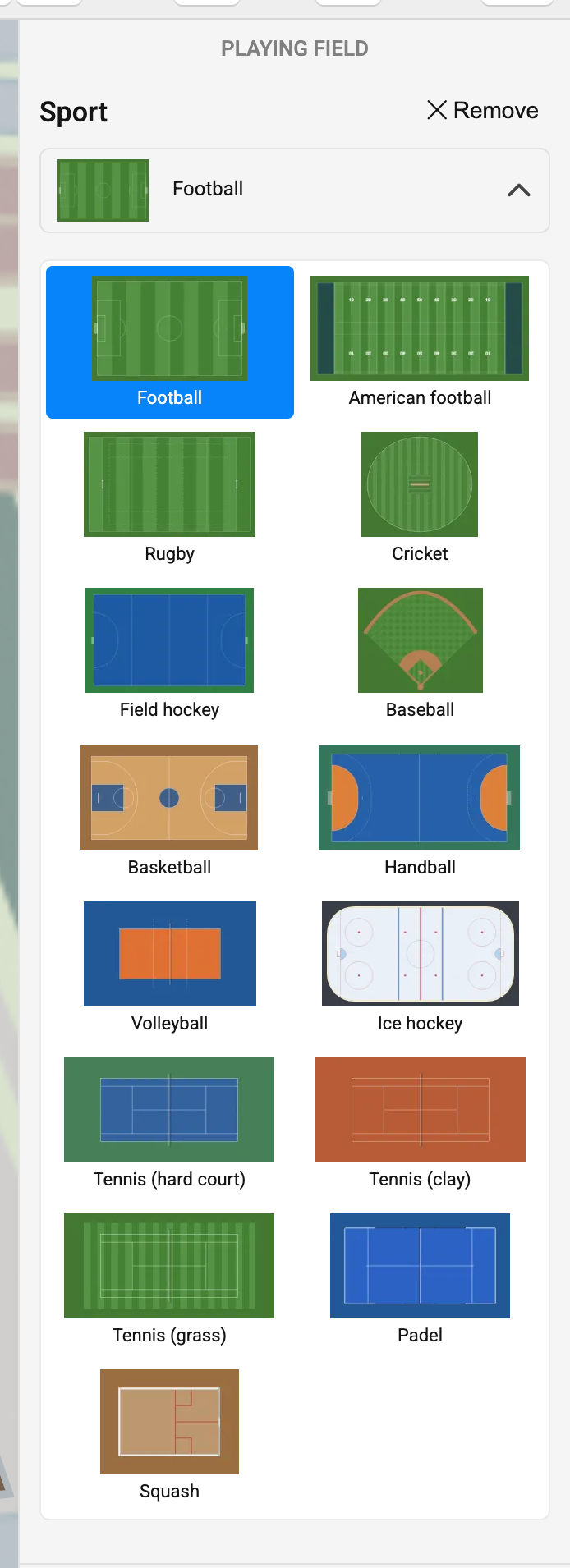
These sports are available: football, American football, rugby, cricket, field hockey, baseball, basketball, handball, volleyball, ice hockey, tennis (hard court, clay and grass), padel and squash. You can switch to another sport at any time from the field's properties.
Filling the gap to the stands
In most venues there's some space between the lines and the first row of seats. Use the field's Run-off size to extend its grass or court surface until it reaches your stands, so there's no empty gap around the field.
In 3D
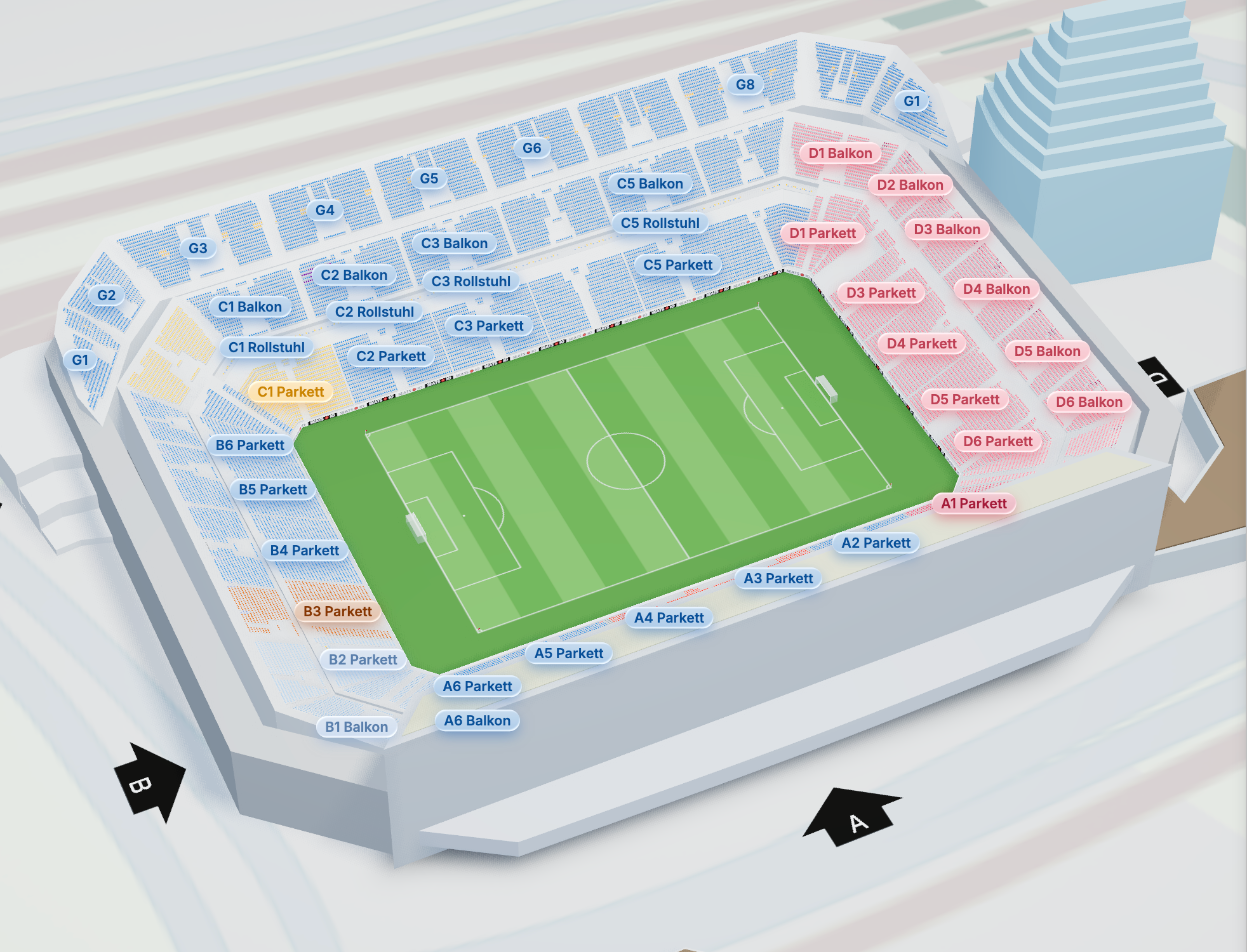
The playing field is part of your chart's 3D view too, laid out at the same size and position as in 2D.
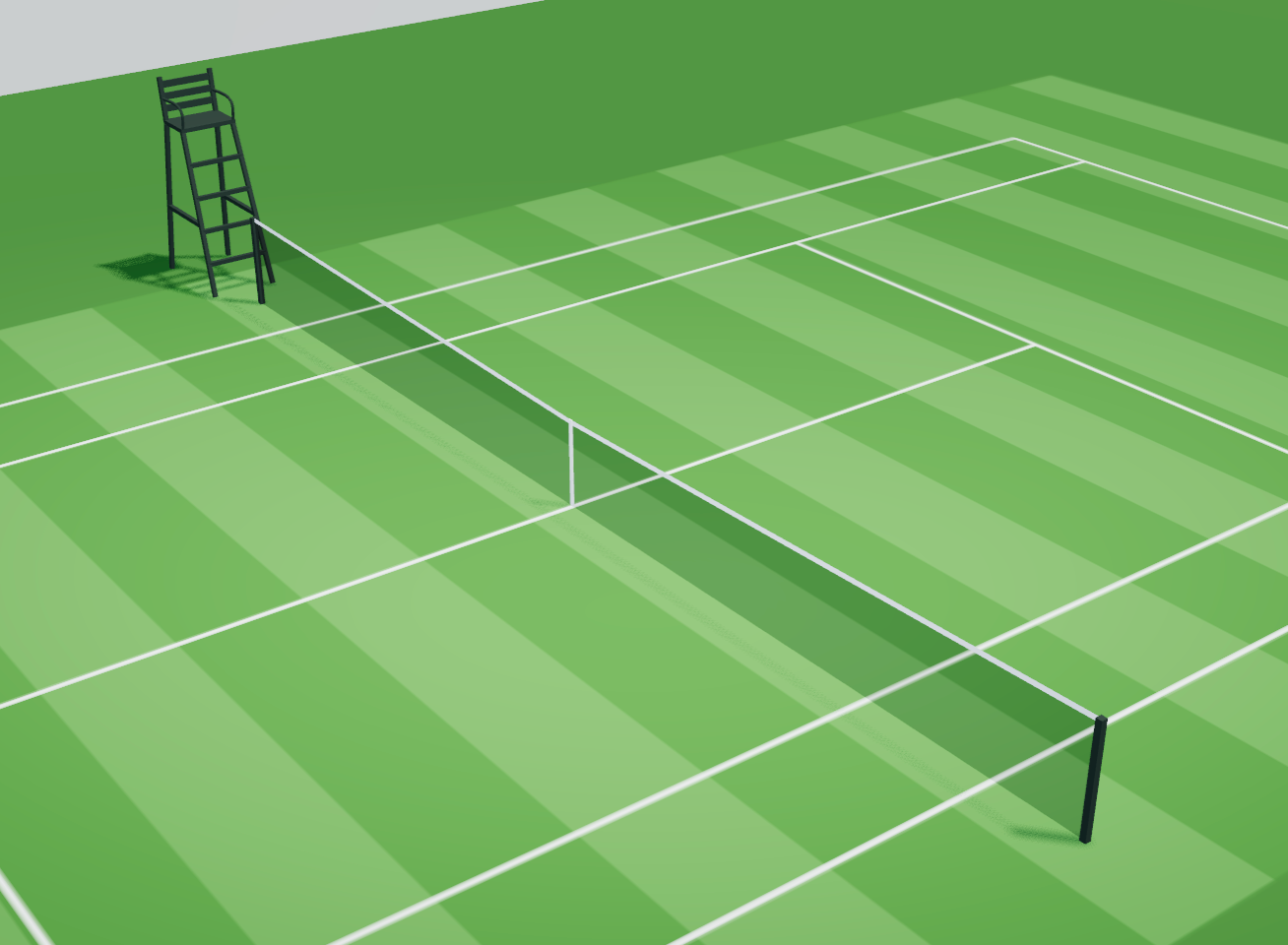
Up close, the field comes with its equipment too: goals, nets, posts and hoops stand on the pitch or court.
Opting out
If you embed the chart designer, you can hide the Playing field tool by disabling the playingFields feature.